How to Watch TV on Long-Haul Flights — The Offline Downloads Guide
You've got a 14-hour flight to Singapore. The in-seat entertainment system is running a 2019 version of some airline's custom interface, and your only options are films you've already seen or documentaries about cheese. You pull out your laptop, open Netflix, and — nothing. No Wi-Fi, or the Wi-Fi costs $30 and runs at the speed of a 2003 dial-up connection.
This is completely avoidable. If you plan ahead by about 24 hours, you can have 10+ hours of your own shows downloaded and ready to play the moment you switch to airplane mode. Here's exactly how to do it — including the part where your downloads mysteriously vanish because of region restrictions.
Which Streaming Services Actually Let You Download?
Not all of them. Here's where things stand right now:
- Netflix — Yes, on almost all plans. The Standard with Ads plan doesn't allow downloads, so if you're on the cheap tier, this won't work for you.
- Disney+ — Yes, and generously. You can store up to 25 downloads per device across 10 devices.
- Amazon Prime Video — Yes, with some title-by-title restrictions based on licensing.
- Apple TV+ — Yes, all originals are downloadable. No third-party content limits to worry about.
- Max (formerly HBO Max) — Yes, but only on ad-free plans.
- Peacock, Paramount+ — Limited or no download support depending on your tier and region.
Netflix is the big one for most people, so we'll use it as the main example throughout this guide. The same logic applies to the others.
The Region Restriction Problem
Here's the frustrating bit. Netflix's library isn't the same everywhere. A show that's on Netflix US might not exist on Netflix UK, and vice versa. When you download something, Netflix checks your location at the moment of download — not just your account. So if you're in Germany trying to download a show that's only licensed for the US, it simply won't appear in your app.
That's where a VPN comes in. You connect to a server in the right country, the app thinks you're there, and suddenly the content is available to download.
Why You Need a Paid VPN (And Why Free Ones Will Let You Down)
Free VPNs are genuinely terrible for this specific use case. Netflix actively blocks VPN IP addresses, and free services recycle IPs constantly — which means they're almost always on Netflix's blocklist already. You'll connect, try to load Netflix, and get the proxy error screen. Every time.
Paid VPNs rotate their IP pools, invest in infrastructure, and actually maintain working servers for streaming. We recommend NordVPN here because it's consistently reliable with Netflix across multiple regions, has dedicated streaming-optimised servers, and the apps are simple enough that you don't need to be technical to use it. It runs about $3.99–$6.99/month (around £3.20–£5.50 / €3.70–€6.40) depending on the plan length.
If NordVPN doesn't suit you, ExpressVPN is the other genuinely solid option — faster on average, but more expensive at around $8.32/month (about £6.60 / €7.60). Surfshark is a budget-friendly alternative that works well for streaming, usually under $2.50/month (about £2 / €2.30) on longer plans.
Step-by-Step: Downloading Before Your Flight
On Desktop (Windows or Mac)
- Download and install NordVPN from nordvpn.com.
- Open NordVPN and connect to a US server (or whichever region has the content you want).
- Open the Netflix app — not the browser. Downloads only work through the Windows app, available from the Microsoft Store. Mac users need to use an iPhone/iPad for downloads, unfortunately; the Mac browser version doesn't support it.
- Search for your show, go to the episode list, and hit the download icon (the arrow pointing down).
- Wait for the download to complete before disconnecting the VPN.
- Once downloaded, you can disconnect the VPN. The file is on your device.
Downloads on Netflix expire. Most titles give you 7 days after downloading, and 48 hours once you've started watching. Disney+ and Prime Video have similar windows. So don't download everything a week before — do it the night before your flight.
On iPhone or iPad (iOS)
- Install NordVPN from the App Store and connect to your chosen server.
- Open Netflix (or Disney+, Prime, etc.) while the VPN is active.
- Find the content you want and tap the download button.
- Make sure downloads complete before you board — airport Wi-Fi is patchy and slow.
- On the plane, open the app. Your downloads are in the "Downloads" tab, accessible fully offline.
One iOS-specific thing: Netflix downloads are tied to DRM (digital rights management), which means they check in with Netflix servers when you first open the app. If you've been offline for a long time, occasionally the app needs a quick reconnect to verify your licence. Connect to the plane Wi-Fi for 30 seconds when you first sit down, just to be safe.
On Android
- Install NordVPN from Google Play, connect to your server.
- Open your streaming app and download as normal.
- Android stores Netflix downloads in a protected folder — you can't move or copy them, which is intentional DRM. Don't try to work around this; just use the app.
- Check your storage before you fly. HD downloads eat space fast. A one-hour Netflix episode in HD is roughly 2–3GB.
Android gives you more flexibility with download quality settings than iOS does. In Netflix settings, you can choose "Standard" (smaller files) or "High" (better picture, more storage). For a phone screen, Standard is honestly fine.
What About Smart TVs?
Smart TVs don't support offline downloads — it's a device limitation, not a VPN problem. If you're prepping for a flight, stick to your phone, tablet, or laptop. If you want to use a VPN on your TV at home to access different regional libraries, that's a separate setup (usually through your router), but it's not relevant for in-flight watching.
Common Problems and How to Fix Them
"I can see the show but there's no download button"
Two possible causes: your Netflix plan doesn't support downloads (check if you're on the ad-supported tier), or the specific title isn't licensed for download even though it's available to stream. Some content — particularly films from certain studios — blocks downloads entirely. Nothing you can do there except find it on a different service.
"Netflix is showing me the proxy/VPN error"
Switch servers. In NordVPN, try a different US city, or use the "Recommended" server option. If that still doesn't work, try enabling "Obfuscated Servers" in NordVPN's settings — this disguises your VPN traffic and gets around more aggressive blocking.
"My downloads disappeared before my flight"
Almost certainly a DRM expiry issue. The 7-day download window is strict. Netflix counts from the moment you download, not from when you watch. Download the night before, not a week before.
"The app won't open offline on the plane"
Some apps need one internet check-in to verify your account when you first launch them. Connect to the plane's Wi-Fi briefly (you don't need to pay for a full session in most cases — just enough to get the app to authenticate), then switch to airplane mode. Your downloads will play fine after that.
FAQ
Is it legal to use a VPN to download from a different Netflix region?
Using a VPN isn't illegal in most countries. It may technically go against Netflix's terms of service, but in practice, Netflix's response is to block the VPN — not to cancel accounts. We've never seen a credible report of anyone losing their account for this.
How many shows can I download at once?
Netflix allows up to 25 downloads per device, across a maximum of 2 devices on the Standard plan and 6 on Premium. Disney+ allows 25 downloads across 10 devices, which is unusually generous. Prime Video limits vary by title.
Do I need the VPN active on the plane to watch my downloads?
No. Once something is downloaded, it's on your device. The VPN only matters at the point of downloading. On the plane, you can be in full airplane mode with no VPN running and everything plays normally.
Can I download in 4K?
Netflix only allows 4K downloads on a very small number of titles, and only on certain devices. Disney+ supports 4K downloads more broadly. For a flight, it's overkill — your laptop or phone screen won't meaningfully show the difference, and 4K files are huge.
Will the airline's Wi-Fi be good enough to stream instead?
Occasionally, on some newer long-haul routes with satellite Wi-Fi, yes — it's usable. But "usable for email" and "good enough to stream HD video for 12 hours" are very different things. Don't rely on it. Download first, treat any working in-flight Wi-Fi as a bonus.
What's the best device to watch downloaded content on long flights?
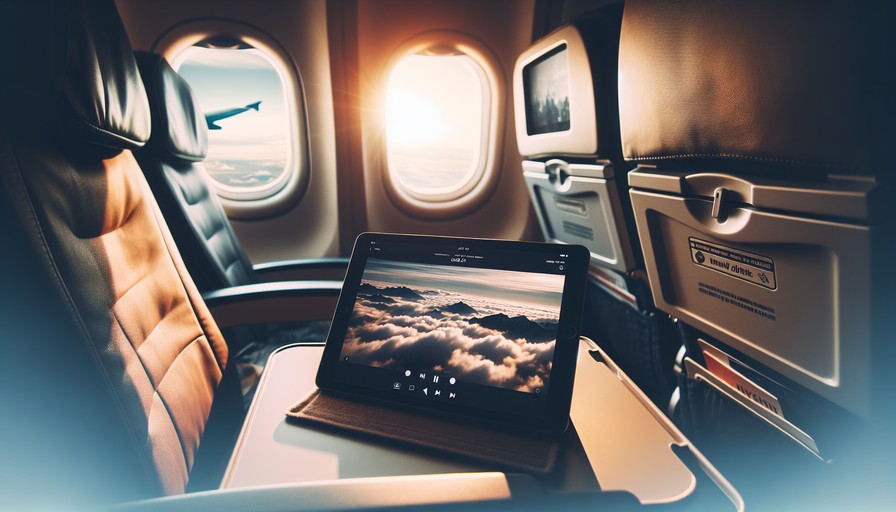
A tablet, honestly. An iPad or Android tablet gives you a bigger screen than a phone, better battery life than a laptop, and it's easier to prop up on the tray table. If you're going to watch 10 hours of TV on a plane, your neck will thank you for not hunching over a phone.
Our Recommendation
Do this the night before your flight: install NordVPN, connect to a US server, open Netflix, and spend 20 minutes queuing up downloads. Grab a full season of something, a couple of films, maybe a documentary for when your brain stops working at hour 9. Set the download quality to Standard unless you're on a tablet with plenty of storage.
Then board your flight, switch to airplane mode, and watch whatever you want. It really is that simple once you've done it once — and the first time is just 20 minutes of setup for potentially 30+ hours of future flights sorted out properly.
Our top pick
Unlock region-locked content with a reliable VPN — tested and verified by our team.
Visit Nordvpn