How to Download and Watch Content Offline — Netflix, Prime Video & Disney+ Compared
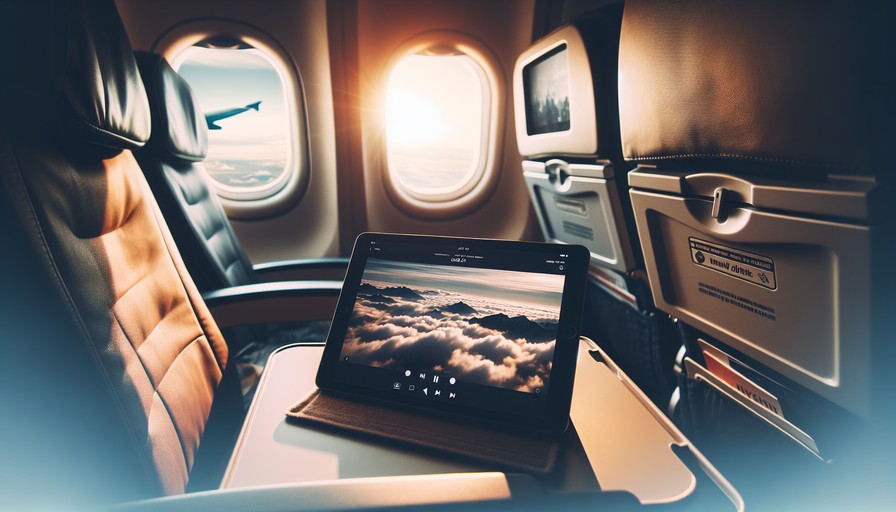
You've got a long flight tomorrow. You want to queue up a few episodes of something good, but half the shows you want aren't available in the country you're flying to — or they disappear from your library the moment you land. And even before you deal with the region issue, you're not sure which of your streaming services actually lets you download anything in the first place.
This is more complicated than it should be. Let's fix that.
Which Services Actually Let You Download?
Good news: all three of the big ones support offline downloads. But they do it differently, and the region restrictions are where things get messy.
Netflix
Netflix has one of the better download setups. Most (not all) titles on Netflix can be downloaded, and you get a reasonable window to watch them — usually 30 days to start watching, then 48 hours once you hit play. The catch is that the Netflix library is different depending on which country's version you're accessing. A show available for download in the US might not exist at all in your region, let alone be downloadable.
Prime Video
Amazon Prime Video also supports downloads, and it's similarly region-locked. Prime's catalogue varies wildly between countries — the UK version and the US version feel like different services sometimes. Downloads expire based on the rental/subscription terms, which can be shorter than Netflix's window, so check before you board.
Disney+
Disney+ allows downloads too, and for a catalogue that's mostly major studio films and big TV shows, this works well. That said, some content — particularly Star content (outside the US) or specific licensed titles — isn't available in every region. And if you're traveling to a country where Disney+ has a more restricted library, you may find your downloaded content becomes unwatchable mid-trip.
Why Region Restrictions Break Your Downloads
Here's the part that catches people off guard. It's not just about what you can download — it's about what your account thinks you're allowed to watch based on where you are.
Each of these services checks your IP address to determine your location. If you're in Germany trying to access the US Netflix catalogue, the service sees a German IP and serves you the German library. Same goes for downloads: you can only download what your regional version of the service offers. And if you travel to a new country with downloaded content, some services will re-verify your location and revoke access if something isn't licensed there.
So if you want to download the US version of a show that's not available where you live, you need to look like you're in the US when you browse and initiate the download. That's where a VPN comes in.
Why You Need a Paid VPN (And Why Free Ones Fail Here)
We'll be straight with you: free VPNs don't work reliably for streaming. Netflix, Prime Video, and Disney+ have all invested in detecting and blocking VPN traffic — especially the kind that comes from shared free VPN servers that thousands of people use simultaneously. You'll hit an error, get a proxy warning, or find the content just won't load.
Paid VPNs invest in regularly rotating their server IPs and maintaining servers that actually get through. That's what you're paying for — not just encryption, but consistent access.
We'd recommend NordVPN here. The reason isn't just that it works (it does), it's that it has dedicated streaming-optimised servers, it handles Netflix US, UK, and several other regional catalogues reliably, and the apps are genuinely simple to use — you're not configuring anything manually. It runs around $3.99–$4.99/month (about £3.20–£4 / €3.70–€4.60) on a longer-term plan, which is less than a cup of coffee.
If you want alternatives, ExpressVPN is consistently strong for streaming (slightly pricier) and Surfshark is worth looking at if you want to cover multiple devices cheaply — it has no device limit.
Step-by-Step: Downloading with a VPN
On Mobile (iOS and Android) — This Is the Main Method
Downloads happen on the app, not in a browser. So this is where most of you will do this.
- Install NordVPN from the App Store or Google Play and sign in.
- Connect to a server in the country whose library you want. For US Netflix, pick a US server. For UK Prime Video, pick UK.
- Open your streaming app (Netflix, Prime, Disney+). Make sure you're seeing the correct regional catalogue — search for a title you know is US-only to confirm.
- Find the title you want, tap the download button (usually a downward arrow icon), and let it download over Wi-Fi.
- Once downloaded, the file is stored on your device. You can now disconnect the VPN — you don't need it running to watch content you've already downloaded.
One thing to keep in mind: if the app does a licence check when you open it (Disney+ sometimes does this), it may need a connection. If you're abroad and that happens, connect the VPN to a server in the right region and reopen the app.
On Desktop (Windows and Mac)
Netflix and Disney+ have desktop download apps for Windows. Prime Video has a desktop app too. The process is similar:
- Install and open NordVPN on your computer, connect to the right server.
- Open the Netflix Windows app (not the browser — downloads don't work in browser on desktop).
- Find your title, click the download icon, and let it go.
- Mac users: Netflix doesn't have a native Mac download app at the time of writing. Use your iPhone or iPad instead.
On Smart TVs
Honest answer: Smart TVs don't support offline downloads for any of these services. It's a mobile-and-tablet-only feature by design. If you want offline viewing, use your phone or tablet. You can always mirror or cast to a TV later when you have a connection.
Common Problems and How to Fix Them
"I can see the download button but it's greyed out." This usually means the title isn't available for download in your region — even with a VPN. Try switching to a different server location, or check if the title is download-eligible in the US or UK specifically.
"The app says I'm not in the right region." The VPN connection may have dropped, or the app cached your old location. Disconnect and reconnect the VPN, force-close the streaming app, then reopen it.
"My downloaded content says 'expired' or won't play." Licences have time limits. Connect the VPN to the correct region, open the app, and it should revalidate. If the licence has fully expired, you'll need to re-download.
"Netflix is showing me a proxy error." The VPN server you're on has been flagged. Switch to a different NordVPN server in the same country — usually the second or third option works fine.
FAQ
Can I download content from a different region's library and keep it forever?
No. Downloads are licence-based, not permanent file saves. They expire after a set period (usually 30 days, then 48 hours once started). You're essentially borrowing a local copy, not keeping it.
Do I need the VPN running while I watch downloaded content?
Usually not. Once the file is downloaded, you can watch it offline without any VPN connection. The exception is if the app tries to verify your licence — then you may need to briefly connect to confirm your region.
Is using a VPN to access another country's library against the terms of service?
Technically, yes — most streaming services have ToS clauses against it. In practice, the consequence is that they may block the VPN server, not your account. We've not seen widespread account bans for this. That said, we're not lawyers, and you're making your own call here.
How many devices can I download to at once?
It varies by plan. Netflix allows downloads on up to 2–4 devices depending on your subscription tier. Disney+ allows up to 10 downloads on up to 10 devices. Prime Video allows up to 25 downloads on 2 devices at once.
Will a VPN slow down my download speed?
A little, yes — VPNs add some overhead. But with a quality paid VPN like NordVPN, it's usually minor. Download over Wi-Fi and you'll barely notice it.
Does this work on a Chromebook?
Yes — Chromebooks can run Android apps, so you can use the Netflix or Disney+ Android app and download content that way. Install NordVPN's Android app on the Chromebook first.
The Bottom Line
If you're only going to take one thing from this: downloads are mobile-first, region-dependent, and a lot more useful once you stop accepting whatever your local library happens to offer. Set up NordVPN on your phone, pick the right server, and you've got access to the full catalogue you're already paying for — not just the sliced-up regional version.
Do the download before you leave home, on a good Wi-Fi connection, with the VPN running. Then disconnect and enjoy the flight.
Our top pick
Unlock region-locked content with a reliable VPN — tested and verified by our team.
Visit Nordvpn